Fix Windows Issues and Restore
Your Windows Live Mail
Fast and Safely

Resolve update errors, crashes, and startup issues to get Windows Live Mail running smoothly again. Follow quick, reliable fixes to restore stability and keep your email working without interruption.

Explore More Guides

Restore Windows Live Mail Fast, Fix Update & Startup Errors with Ease

Quick, reliable steps to get your email running smoothly again. Here are some quick guides:

Repair Windows Update Issues

  • Run Windows Update Troubleshooter to fix failed or incomplete updates.
  • Reinstall the .NET Framework if Live Mail won't open after recent updates.
  • Use SFC /scannow in Command Prompt to repair corrupted system files.

Resolve Startup or Boot Errors

  • Open Startup Repair from the Windows Recovery Environment (WinRE).
  • Disable unnecessary startup apps that may delay or block Live Mail.
  • Review Event Viewer logs for recurring issues and apply suggested fixes.

Restart and Verify Stability

  • Restart your PC and reopen Live Mail to confirm the issue is resolved.
  • If problems continue, use System Restore to roll back to a stable configuration.
  • Ensure all pending Windows updates are installed to prevent recurring errors.

Fix Windows Crashes and Recover Your Live Mail Data Fast

Simple steps to keep your system light, stable, and optimized for smooth email performance.
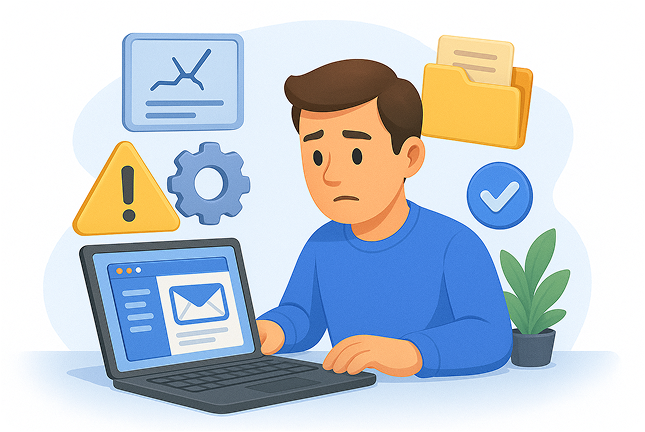
Computer with security shield and checkmark
  • Run System File Checker (SFC) Open Command Prompt as Administrator → type sfc /scannow → press Enter to repair damaged Windows files.
  • Check for Corrupted User Profiles Create a new Windows user account and test Live Mail to see if the issue persists.
  • Repair or Reinstall Windows Live Mail Uninstall Live Mail → reinstall from a trusted source or backup installer.
  • Recover Corrupted Email Data Locate your mail store folder (AppData > Local > Microsoft > Windows Live Mail) → copy .eml files → import them after reinstall.
  • Prevent Future Crashes Keep Windows updated, run regular virus scans, and avoid forced shutdowns during mail sync or updates.

Boost Windows Performance for a Faster Live Mail Experience

Simple steps to keep your system light, stable, and optimized for smooth email performance.
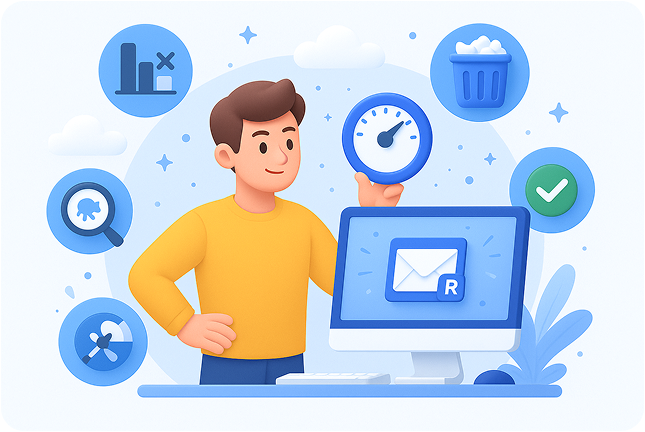
Computer with security shield and checkmark
  • Clear Startup Apps Disable unnecessary background programs using Task Manager → Startup.
  • Free Up Storage Space Run Disk Cleanup or delete temporary files regularly.
  • Update Windows & Drivers Keep your system and hardware drivers up to date for better stability.
  • Run Regular Virus Scans Use Windows Security or a trusted antivirus to prevent slowdowns.
  • Defragment or Optimize Drives Use Defragment and Optimize Drives to maintain disk health and performance.

Recover Lost Data and Fix System Errors Safely

Simple steps to keep your system light, stable, and optimized for smooth email performance.

Situation
What to Do
Quick Steps

Recover Live Mail Data After a Crash or Update Failure

Restore your emails and settings without reinstalling Windows.

1. Open File Explorer → go to AppData > Local > Microsoft > Windows Live Mail.

2. Copy .eml files to a safe location.

3. Reinstall Live Mail → import saved emails.

Use System Restore or Reset for Deeper Issues

Fix critical system errors or corruption affecting Live Mail.

1. Go to Settings → System → Recovery

2. Choose System Restore to roll back recent changes

3. If errors persist, select Reset this PC to start fresh while keeping files

Keep Windows and Live Mail Stable Long-Term

Simple habits that prevent crashes, data loss, and slow performance.

Check Icon Solid with Background

Run Regular Windows Updates

Keep security patches and performance improvements current.

Check Icon Solid with Background

Back Up Live Mail Data Monthly

Export messages or copy the mail store folder to a secure drive or cloud.

Check Icon Solid with Background

Clean Up System Junk

Use Disk Cleanup or Storage Sense to free space and improve speed.

Check Icon Solid with Background

Scan for Viruses and Malware

Schedule automatic scans with Windows Security or a trusted antivirus.

Check Icon Solid with Background

Monitor Startup and Background Apps

Disable unnecessary programs to reduce system load.

Check badge icon

Keep Your System Healthy and Your Emails Safe

A few smart habits can make all the difference.

By maintaining your Windows system, updating regularly, and backing up your Live Mail data, you’ll prevent crashes and protect years of messages from loss. Whether you’re fixing issues or preparing for 2025, every small step adds up to long-term stability.

Explore More Guides