
Download the Verified File
Get the official wlsetup-all.exe from a trusted Microsoft mirror or archived source before saving.
Follow these essential steps to secure your installer files
Get the official wlsetup-all.exe from a trusted Microsoft mirror or archived source before saving.

Save duplicates on OneDrive, Google Drive, or a USB drive to prevent data loss.

Keep a dedicated “Windows Essentials Backup” folder on your PC or external drive.

Right-click the installer → Properties → Digital Signatures to confirm it’s genuine and unmodified.
Follow these essential steps to secure your installer files

Create a clearly named folder like "Windows Essentials Setup Backup" to store installers, notes, and related files together.

Save one copy on your PC and another on OneDrive, Google Drive, or an external drive for redundancy.

Use built-in Windows encryption (BitLocker or ZIP password) to protect sensitive configuration data or license info.

Include a simple text file listing installation steps, versions, and custom settings for quick reference later.
Windows Live Mail issues generally fall into a few clear categories. Recognizing the type of error helps you understand the problem and choose the right guide.

Right-click the file → Properties → Digital Signatures → Confirm Microsoft Corporation as the signer.
Simple steps to keep your system light, stable, and optimized for smooth email performance.
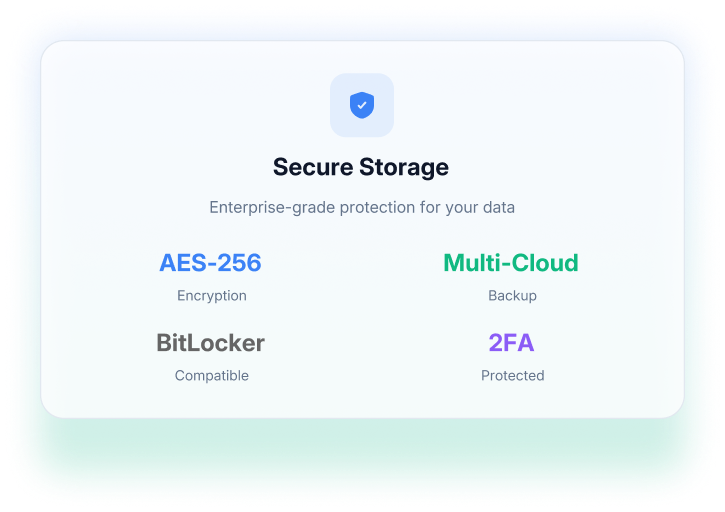
Add an extra layer of safety to your files with simple encryption and password protection.

Encrypt entire drives or folders to keep backup data private.

Compress folders and add a strong password using tools like 7-Zip or WinRAR.

Combine letters, numbers, and symbols; store them in a password manager.

Save recovery keys or passwords in an encrypted note or offline location.
Combine software and email backups for seamless restoration and long-term reliability.

Keep your Windows Essentials installer and email backups (.eml, .csv, .vcf) together to restore both the app and your data after a system reset.

Store everything in one labeled folder, such as Windows_LiveMail_Recovery_2025, for quick access.

Add version numbers or dates to your files (e.g., Essentials2012_Setup_v2_2025-10).

Replace old installers or backups with verified, current copies every few months to avoid corruption or incompatibility.

Secure your Windows Live Mail, installers, and data with confidence.
Building a complete recovery plan means more than saving files — it’s about ensuring your emails, contacts, and setup tools are always safe, verified, and ready to restore. Use trusted backup methods, keep copies in secure locations, and update them regularly to prevent data loss.


