How to Install and Set up Windows Live Mail (2025 Official Guide)

Learn how to properly install, configure, and use Windows Live Mail in 2025. This guide covers every important step you need to know before and after installation.

Guide Hero Image
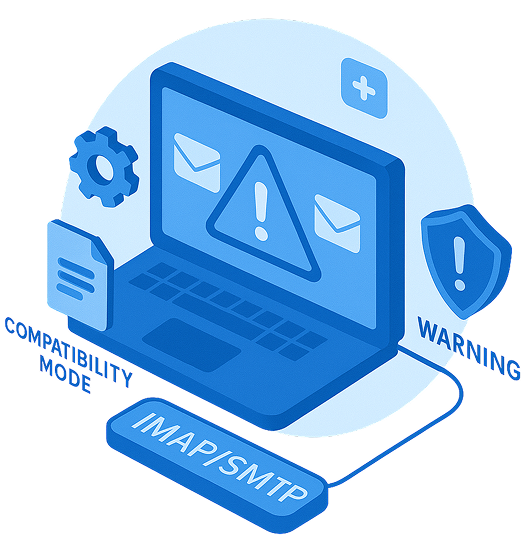
Illustration showing warning messages on a computer screen

Before You Start

  • Ensure you have Windows 7, 8, 10, or 11 installed.
  • Have administrator access to your computer.
  • Download the Windows Live Essentials 2012 installer from a trusted source.
  • Temporarily disable antivirus software if installation is blocked.

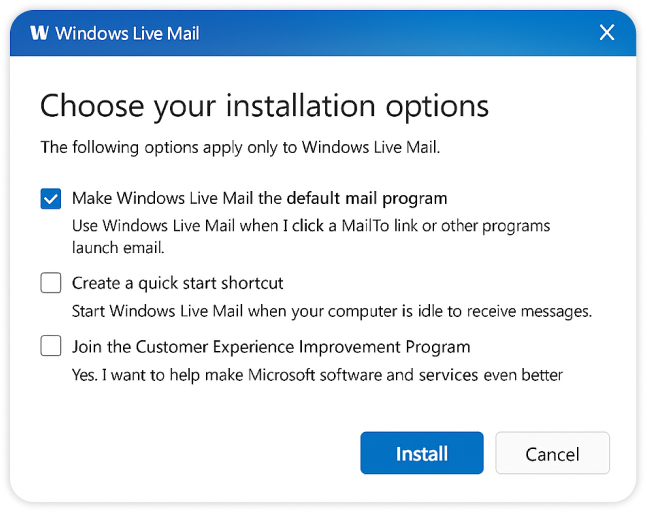
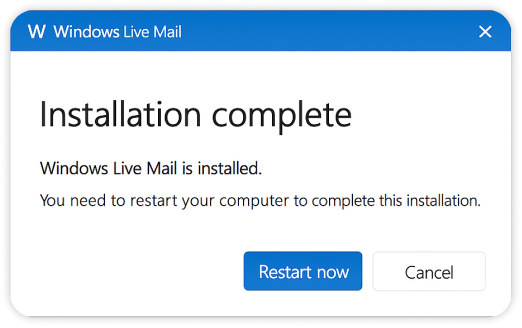
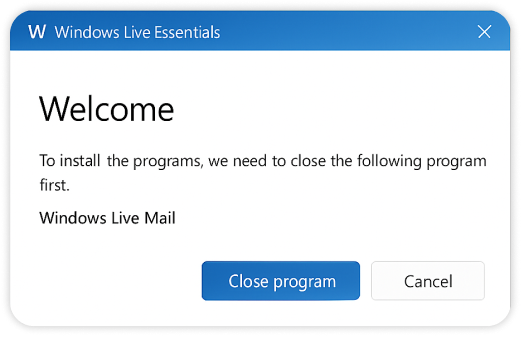
Installation screenshots

Number one icon
Welcome dialog asking to close Windows Live Mail
Number two icon
Installation options dialog
Number three icon
Completion dialog with restart instruction
Computer with security shield and checkmark

First Time Setup

After installation, launch Windows Live Mail.
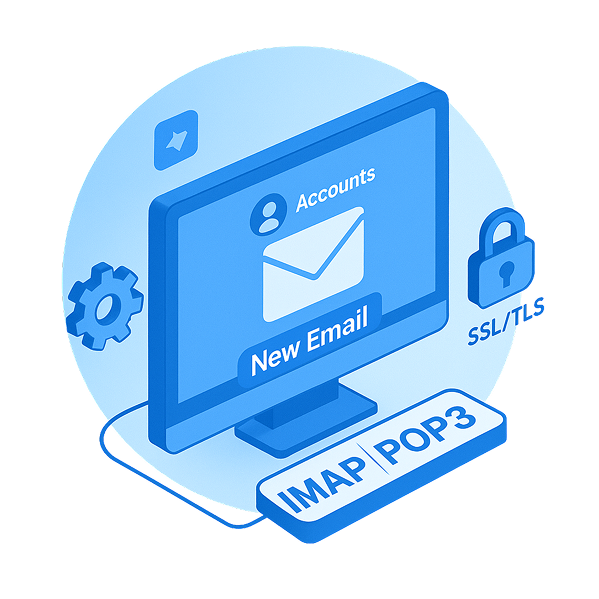
  • Click on Accounts and add a new email account.
  • Use IMAP or POP3 settings depending on your email provider.
  • Enable SSL/TLS security settings for better protection.
Placeholder for setup illustration

Common Installation Issues

  • Installer does not run: Try running the installer in Compatibility Mode for Windows 7.
  • Email account setup fails: Double-check your IMAP/SMTP server settings and make sure your email provider allows access.
  • Security warning appears: Ensure the installer was downloaded from a trusted source like Archive.org.
Windows Live Download

Ready to Download?

Get the verified Windows Live Mail installer now and start using it today!
Placeholder for setup illustration

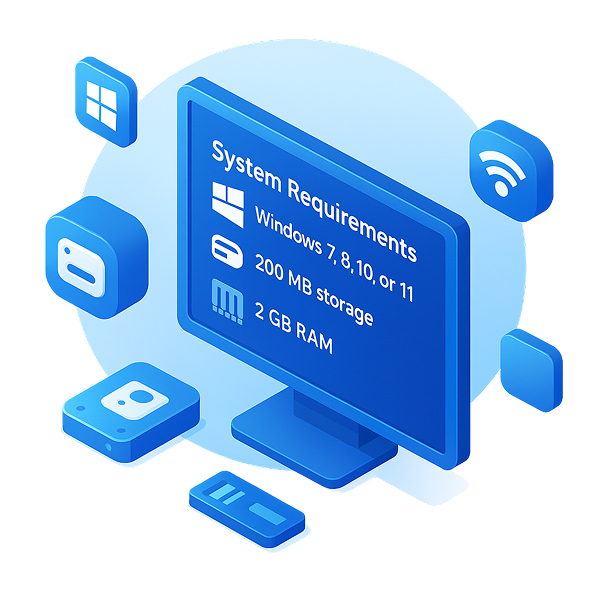
System Requirements

Windows Live Mail runs best on supported Windows versions and installs in just a few simple steps. Here's what you need to know.

  • Operating System – Windows 7, 8, 10, or 11
  • Storage – At least 200 MB free space
  • RAM – 2 GB or higher recommended
  • Internet – Needed for setup and account sync

Need Help?

If you encounter any problems, visit our Help Center for detailed troubleshooting guides and email migration tips.
CTA Image

Go to Help Center