Fix Outlook Import Errors
and Safely Transfer
Windows Live Mail Data

Resolve PST issues, missing emails, and attachment errors with step-by-step migration fixes that keep your data secure.

Explore Transfer Guides

Safest Way to Back Up and Export Windows Live Mail Messages

Keep your emails protected — learn the most reliable way to back up and export Windows Live Mail without losing data.

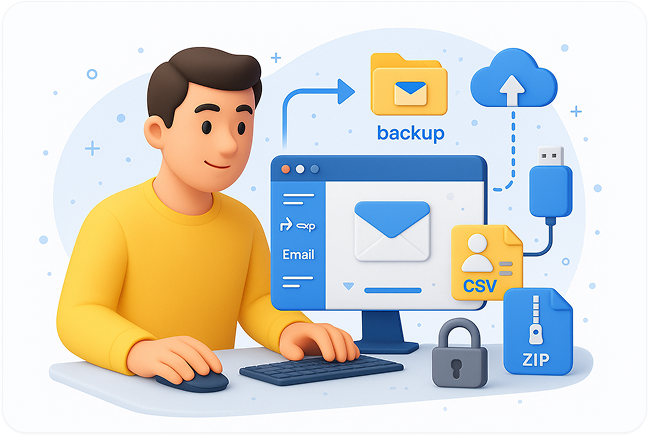
Illustration of a person backing up email data
  • Open Windows Live Mail Launch the app and click the File tab to access export options.
  • Go to Export → Email Messages Choose Microsoft Exchange if you plan to import to Outlook, or .eml format for file backups.
  • Select a Safe Export Location Save your emails to a dedicated backup folder on your PC or an external drive.
  • Back Up Contacts Separately Open Contacts → Export → CSV/VCF, then store them with your email backup.
  • Secure Your Backup Copy your backup folder to cloud storage or an external drive, and use a ZIP password or encryption for added safety.

Locate and Back Up Your Windows Live Mail Files Safely

Quickly locate your saved emails and contacts for easy backup or transfer.

Locate Email Storage Folders (.eml)

Your Windows Live Mail messages live in the local AppData cache.

C:\Users\<YourUserName>\AppData\Local\Microsoft\Windows Live Mail

Each folder (Inbox, Sent, Drafts, etc.) matches the same section inside the app.

Open File Explorer, choose View -> Show hidden items to see AppData.

Find Contact Files (.csv or .vcf)

Contacts are saved separately so you can export or copy them easily.

C:\Users\<YourUserName>\Contacts

In Contacts, go to Export -> CSV or VCF and choose where to save the file.

Restore Windows Live Mail on a New PC — Quickly and Safely

Easily recover your old emails and contacts — even after a full Windows reinstall or hardware upgrade.

Reinstall Windows Live Mail

Install Windows Live Mail on your new or freshly reset computer so the app is ready to receive your archived data.

Copy your backed-up folders

Paste the Windows Live Mail and Contacts folders into the same locations they used before so the client recognizes your data automatically.

C:\Users\<YourUserName>\AppData\Local\Microsoft\Windows Live Mail
C:\Users\<YourUserName>\Contacts

Reopen Live Mail and verify

Launch the app — your messages, folders, and contacts should reappear without any additional steps.

Import if needed

If the folders do not load, go to File → Import → Messages/Contacts and point at the backup copies.

Automate Backups with Cloud Storage

Use OneDrive, Google Drive, or Dropbox and keep your mail folders mirrored in the cloud for instant recovery.

  • Move your Windows Live Mail folder into your cloud directory (e.g., OneDrive/Documents/Live Mail Backup).
  • Enable auto-sync so changes are backed up in real time.

Tip:

Schedule a weekly or monthly backup so your mailbox stays current and the risk of losing messages stays low.

Keep Your Data Safe — How Often to Back Up Windows Live Mail

Stay protected by keeping your backups current and consistent.

Purple Calendar Icon

Weekly

Ideal for active users who send and receive emails daily.

Green Calendar Icon

Monthly

Suitable if your mailbox changes less often or you primarily use it for archiving.

Yellow Refresh Icon

Before Major Updates

Always create a new backup before reinstalling Windows, updating the system, or migrating to a new PC.

Keep Your Exported Files Readable and Error-Free

Follow these essential steps to make sure your backups stay secure and accessible over time.

Solid Check Icon with Background

Export in Standard Formats

Save emails as .eml and contacts as .csv or .vcf for lasting compatibility.

Solid Check Icon with Background

Store Backups in Multiple Locations

Keep copies on both an external drive and a trusted cloud service like OneDrive or Google Drive.

Solid Check Icon with Background

Avoid Unnecessary Compression

If you compress files, verify they still open correctly afterward.

Solid Check Icon with Background

Label Backups Clearly

Add dates or version tags (e.g., MailBackup_2025-10) to organize versions easily.

Solid Check Icon with Background

Test Backups Regularly

Open a few files periodically to confirm they remain readable and uncorrupted.

Solid Check Icon with Background

Replace Old Drives Over Time

Move backups to newer storage devices every few years to prevent data decay.

Recommended Tools for Automatic Live Mail Backups

Set it once — keep your emails and contacts safely backed up.

OneDrive Logo

OneDrive

Syncs Live Mail folders automatically with cloud storage.

Google Drive Logo

Google Drive for Desktop

Mirrors mail data to your Google account in real time.

Dropbox Logo

Dropbox

Keeps backup copies updated across multiple devices.

AOMEI Backupper Logo

AOMEI Backupper

Automates scheduled local or cloud backups.

EaseUS Todo Backup Logo

EaseUS Todo Backup

Creates recurring system and file backups with restore options.

Check badge icon

Finish Your Migration Safely and Keep Your Emails Intact

Avoid errors, protect your data, and complete your transfer with confidence.

By following verified steps and using Microsoft’s repair tools, you can fix import issues, recover attachments, and sync Live Mail with Outlook securely. A few careful checks before migrating can prevent data loss and save hours of troubleshooting later.

Explore Migration Guides